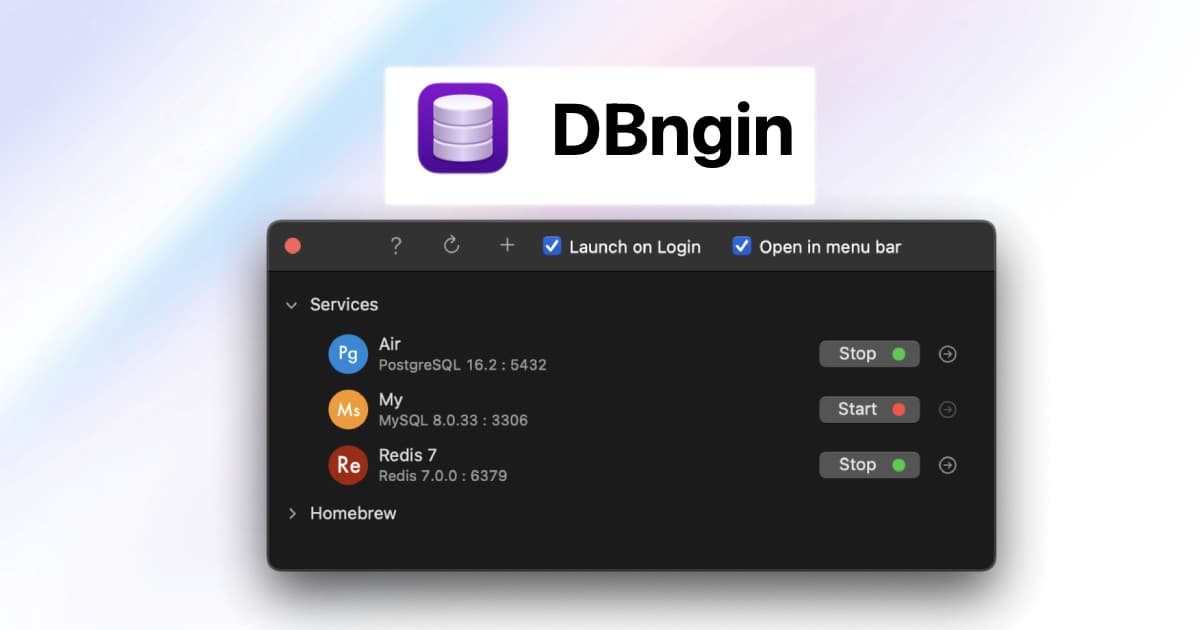


DBngin is a free, native macOS application that lets developers run local instances of PostgreSQL, MySQL, MariaDB, Redis, MongoDB, and more without Docker, virtual machines, or Homebrew configuration. Built by the team behind TablePlus, DBngin gives you a simple GUI to spin up, stop, and switch between database engines and versions on your Mac in seconds.
What Is DBngin?
DBngin is a one-click database engine manager for macOS. Instead of installing each database separately through Homebrew, running it inside Docker, or maintaining a virtual machine, you launch DBngin once and create as many local database instances as you need — each on its own port, each running natively on macOS.
DBngin has been available since 2019 and currently supports 7+ database engines and dozens of versions across them. Compared to running Docker Desktop on macOS, which can consume 2 GB+ of RAM just for the daemon, DBngin runs each database as a native process with negligible idle overhead — typically under 50 MB per running engine.
Key facts:
- Free, 100% – no paid tiers
- Native macOS app (Intel and Apple Silicon)
- Built and maintained by the TablePlus team (the same people behind the TablePlus database GUI)
- No Docker, no virtual machine, no Homebrew required
- Multiple database engines and multiple versions can run side by side
- Closed-source but free; ad-free; no telemetry tracking required to use it
- Official site: dbngin.com
DBngin vs Docker vs Homebrew – Quick Comparison
| Aspect | DBngin | Docker | Homebrew |
|---|---|---|---|
| Setup time | Seconds — install app, click „Create” | Minutes — write or pull a compose file, run it | Minutes — brew install, configure, manage services |
| Resource usage (idle) | ~30–50 MB per native engine | ~2 GB RAM for Docker Desktop on macOS | ~30–50 MB per native engine |
| Multiple versions side by side | Yes — each gets its own port | Yes — via separate containers | Awkward — needs @version formulas |
| GUI | Yes | Optional (Docker Desktop) | No (CLI only) |
| Cross-platform | macOS only | macOS, Linux, Windows | macOS and Linux |
| Reproducible team setup | Manual — each developer sets up their own | Yes — commit docker-compose.yml to repo | Manual |
| Production parity | Native macOS install (no container parity) | High — same image runs locally and in CI | Native macOS install |
| Price | Free | Free for personal / small teams; paid Desktop for larger orgs | Free |
In short: pick DBngin when you work solo or in a small Mac-only team and want the lowest-friction local database. Pick Docker when production parity, CI reproducibility, or non-macOS teammates matter. Pick Homebrew when you want native installs but don’t need a GUI.
Key features of DBngin
- Multi-engine support – run PostgreSQL, MySQL, MariaDB, Redis, MongoDB, and more from a single app
- Multiple versions in parallel – keep PostgreSQL 14 for one project and PostgreSQL 16 for another, running at the same time on different ports
- One-click create, start, stop – no command line required
- Per-instance ports – DBngin assigns ports automatically so engines don’t conflict
- Auto-start option – instances can launch when DBngin starts
- Native macOS app – no Docker daemon, no virtual machine, no overhead
- Tight TablePlus integration – open any DBngin database directly in TablePlus with one click
- Free forever – no premium tier, no upsell
Supported database engines
DBngin supports the most common open-source database engines used in modern web and mobile development:
- PostgreSQL (multiple versions)
- MySQL (multiple versions)
- MariaDB
- Redis
- MongoDB
- SQL Server (Microsoft)
- MinIO (S3-compatible object storage)
For the current, full list of supported engines and versions, check the official DBngin page: https://dbngin.com/
How to install DBngin on macOS
DBngin installation takes about a minute:
- Go to https://dbngin.com/ and click Download.
- Open the downloaded
.dmgfile. - Drag DBngin into your Applications folder.
- Launch DBngin from Applications or Spotlight.
- (Optional) Allow DBngin to start at login if you want your databases ready every time you boot.
That’s it – no Homebrew, no psql or mysql CLI setup, no docker-compose.yml.
How to create Your first local database
Once DBngin is running, creating a local Postgres instance takes three clicks:
- Click the
+button in the DBngin window. - Choose your engine (e.g. PostgreSQL) and version.
- Give the instance a name and click Create.
DBngin will start the instance on a free port (usually 5432 for the first Postgres instance) and display its connection details – host, port, default username, and an empty password by default.
Connect from your app’s DATABASE_URL:
postgres://[email protected]:5432/postgres
Or open the instance directly in TablePlus by clicking the lightning-bolt icon next to it inside DBngin.
DBngin and TablePlus – how they work together
DBngin and TablePlus are built by the same team and are designed to pair naturally:
- DBngin handles the database engines (running, stopping, versioning)
- TablePlus is the GUI you use to actually browse tables, run queries, and edit data
You can use DBngin without TablePlus (any database client works — DBeaver, pgAdmin, Postico, the psql CLI, etc.). And you can use TablePlus without DBngin (against any database, local or remote). But together they give you a clean macOS-native workflow: spin up an engine in DBngin, click the bolt icon, query it in TablePlus.
TablePlus, the GUI counterpart, has been downloaded over 1 million times across macOS, Windows, Linux, and iOS [TODO: verify exact figure on tableplus.com] — making the DBngin + TablePlus pair one of the most widely-used database tooling combinations on macOS. TablePlus itself has both a free tier (with row-count limits) and a paid license. DBngin stays free regardless.
When to use DBngin (and when to stick with docker)
DBngin is a strong fit if you:
- Work on macOS (Intel or Apple Silicon)
- Build local prototypes, side projects, or small-team apps
- Want to skip Docker overhead and complexity for local development
- Need to switch between PostgreSQL versions quickly (e.g. 14 vs 16)
- Already use TablePlus or want a smooth Mac-native database workflow
Docker is the better choice if you:
- Need cross-platform reproducibility for a team that includes Linux or Windows developers
- Want your local environment to match production containers exactly
- Run more than just databases locally (Redis + Postgres + Kafka + Elasticsearch + …) and prefer a single
docker-compose up - Are required by your CI pipeline to use container-based services
„For local development on macOS, DBngin removes the entire 'install and configure Postgres’ step from onboarding. New developers go from clone to running tests in under five minutes instead of half a day.” – Krystian Juraszek, Senior Backend Developer at fireup.pro
Need help designing or scaling your database layer?
Local tooling like DBngin is great for development, but production database design – schemas, performance, scaling, migrations – is where real complexity lives. We’ve helped clients architect and migrate database layers across PostgreSQL, MySQL, MongoDB, and Redis for years. If you’re planning a new product or hitting performance limits on an existing one, talk to an expert: https://fireup.pro/lets-talk
Further reading on fireup.pro:
- Back-end Development → https://fireup.pro/services/backend-development
- Data Processing → https://fireup.pro/services/data-processing
- Systems Migration → https://fireup.pro/services/systems-migration-services
- Custom Software Development → https://fireup.pro/services/custom-software-development
External references:
- DBngin official site → https://dbngin.com/
- TablePlus → https://tableplus.com/
- PostgreSQL → https://www.postgresql.org/
- MySQL → https://www.mysql.com/
- Redis → https://redis.io/


